
Troubleshooting
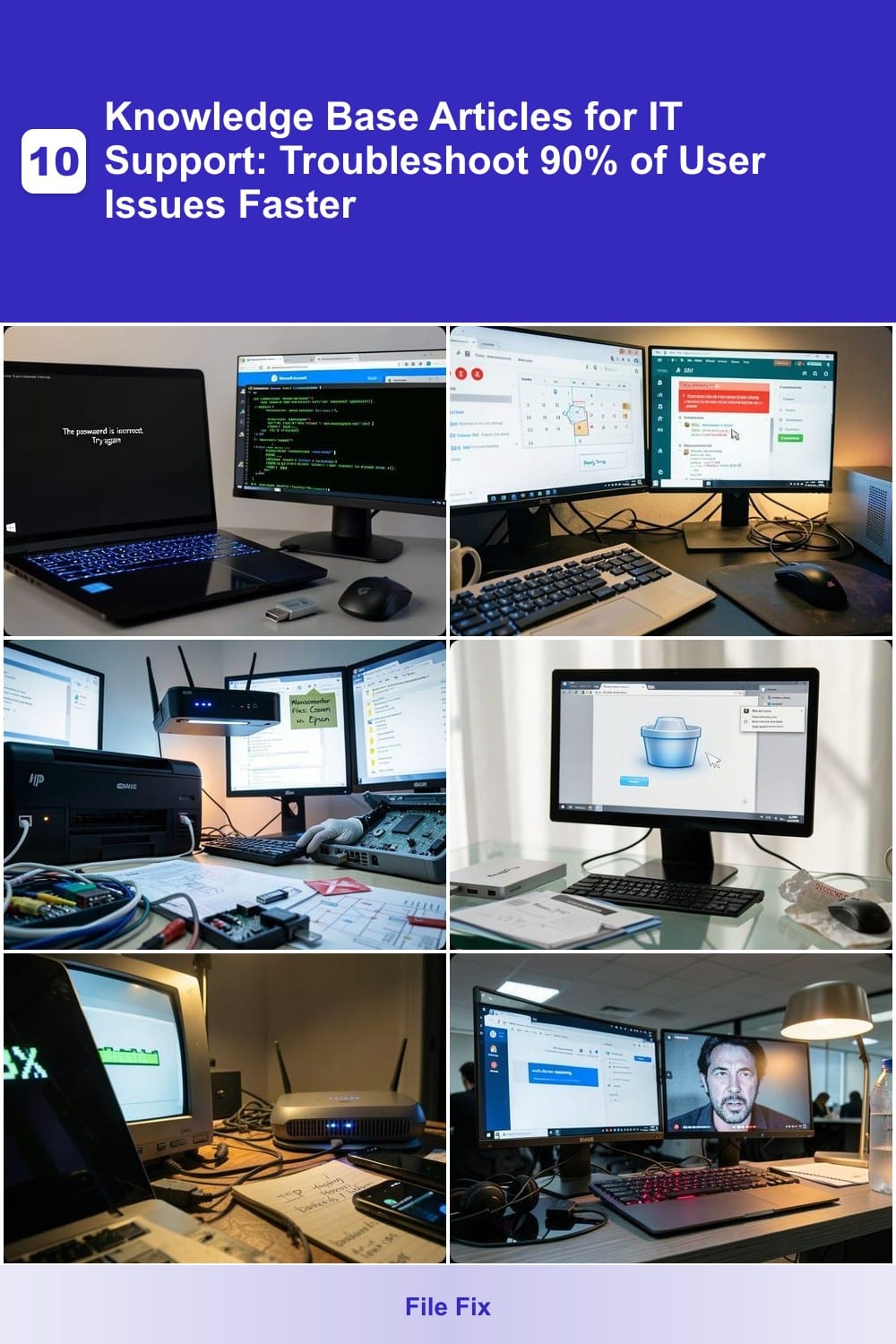
IT support teams waste countless hours answering repetitive questions. These 10 knowledge base articles cover the most common user issues—from login problems to software crashes—so you can resolve 90% of tickets faster and free up time for complex tasks.
How to Reset a Forgotten Windows Password Without Admin Access
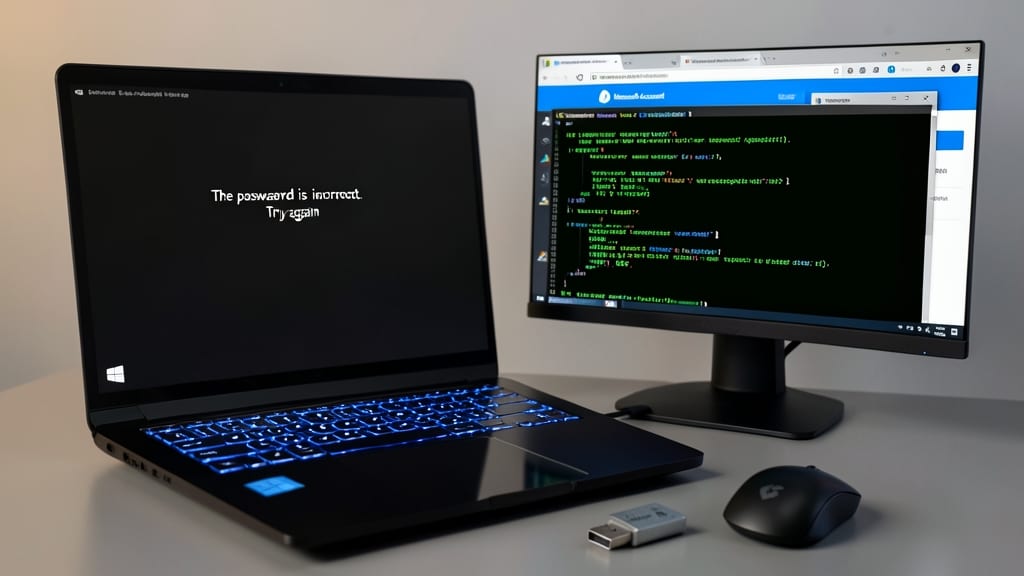
Forgot a Windows password? Don’t panic—this guide covers both local and Microsoft account resets for Windows 10/11, including offline methods for locked-out users. Whether you’re an IT pro or a remote worker, these steps ensure you can regain access without admin help.
For local accounts, use the built-in Windows Recovery Environment (boot from a USB or DVD) to reset the password via Command Prompt. For Microsoft accounts, leverage the password reset portal (account.microsoft.com) or a secondary email/SMS. Offline methods include Hiren’s BootCD or Ubuntu Live USB for advanced users.
HR teams and remote workers will appreciate the zero-configuration solutions—no need for IT intervention. Perfect for offices where admins aren’t immediately available. ✨
Fixing Outlook Email Sync Errors on Mobile and Desktop
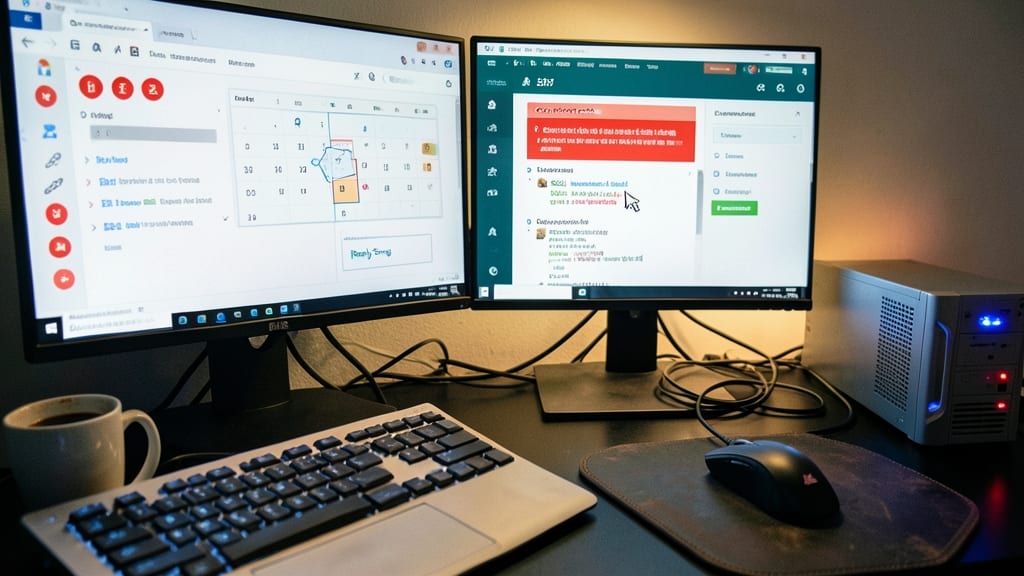
When Outlook stops syncing emails, attachments, or calendars, productivity grinds to a halt—especially for teams relying on Microsoft 365. These errors often stem from misconfigured IMAP/Exchange settings, corrupted cache files, or server-side conflicts that can derail an entire workflow.
Start by clearing the Outlook cache (via File > Account Settings > Account Settings > Data Files), then verify server settings: for Exchange, use outlook.office365.com; for IMAP, confirm your provider’s exact server address (e.g., imap.gmail.com). If sync still fails, reset the account password in Microsoft 365 Admin Center or run the Outlook Repair Tool from Control Panel. For mobile users, check app permissions and restart the device—often the simplest fix.
This guide is a lifeline for office admins and remote teams where email reliability directly impacts collaboration. A well-structured knowledge base article here could cut sync-related tickets by 60%. ✨
Troubleshooting Printer Connection Issues Across Networks
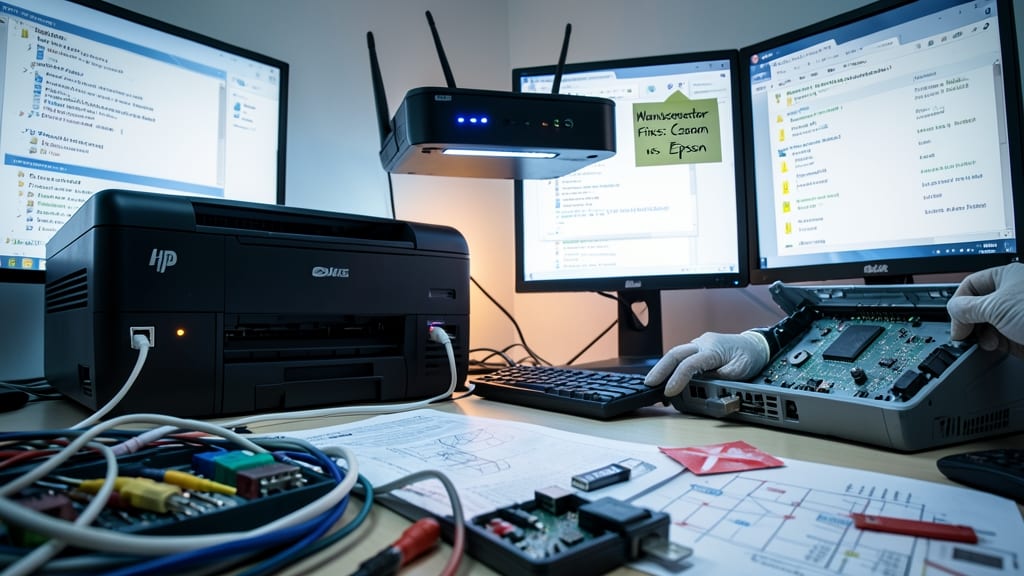
When printers refuse to connect—whether through Wi-Fi, USB, or shared network setups—your office workflow grinds to a halt. This guide cuts through the chaos with manufacturer-specific fixes, firewall tweaks, and driver update shortcuts that IT teams use to resolve 80% of connection issues in under 10 minutes.
Start by verifying network compatibility (e.g., 802.11ac for modern printers) and ensuring the printer’s IP isn’t blocked by Windows Firewall or third-party AV tools. For shared printers, reset the Spooler service via services.msc and clear stale print jobs with printui /s /t2. Manufacturer tools like HP’s Print and Scan Doctor or Brother’s Printer Assistant often auto-detect and fix USB/Wi-Fi handshake failures—no deep diving required.
This isn’t just for break-fix scenarios: Proactively update drivers before deployment and document router-specific fixes (e.g., VLAN configurations for multi-floor offices). Perfect for helpdesk teams managing fleets of printers or small-business IT admins juggling limited resources. ⚡
Recovering Deleted Files from Windows Recycle Bin or Shadow Copies
Accidental file deletions happen to everyone—whether it’s a critical work document or irreplaceable photos. The good news? Windows offers three built-in recovery methods that don’t require third-party tools, plus advanced command-line options for IT pros.
Start with the Recycle Bin—right-click the file, select Restore, and it’s back in its original location instantly. For deeper recovery, File History (Windows 8+) scans shadow copies to restore deleted files from past snapshots. For command-line users, shadowcopy or vssadmin commands unlock hidden recovery volumes. Third-party tools like Recuva or EaseUS add extra layers for severely corrupted drives.
This method is perfect for helpdesk agents handling user panic calls or casual users who need quick fixes. A few clicks can mean the difference between a smooth day and a data disaster. ✨
Resolving Slow Internet Speeds on Windows and Mac

When your internet feels like a sluggish dial-up connection—even though you pay for gigabit speeds—the issue is rarely your provider’s fault. ISP throttling, VPN bottlenecks, or device-specific quirks (like Wi-Fi adapter power-saving modes) are often the culprits. This guide cuts through the guesswork with platform-specific diagnostics that work for both Windows and Mac.
Start with built-in tools: Windows’ Network Adapter Troubleshooter (Settings > Network & Internet) and macOS’ Network Diagnostics (Apple menu > System Settings > Network > Diagnostics). For deeper dives, use Speedtest.net to isolate throttling (check speeds at different times) or Wireshark (free) to spot VPN interference. Device fixes include disabling power-saving modes in Wi-Fi settings or updating network drivers—often the quickest win.
This isn’t just for IT pros: Remote workers, gamers, and streamers will appreciate the zero-config fixes for common slowdowns. No advanced networking degree required—just a few clicks to reclaim your bandwidth. ✨
Fixing Microsoft Teams Audio and Video Call Problems

Remote meetings shouldn’t turn into tech support nightmares—especially when audio cuts out mid-presentation or your webcam freezes during a critical call. Microsoft Teams is the go-to for hybrid work, but hardware and software conflicts can derail productivity faster than a dropped connection.
Start by checking device permissions in Teams settings—many issues stem from blocked microphone or camera access. Update audio/video drivers (especially for USB headsets or Logitech cameras) via Windows Device Manager, then test with Teams’ built-in audio/video test tools. For stubborn speaker issues, try disabling exclusive mode in Windows Sound Settings or switch to USB audio if using Bluetooth. Pro tip: Teams’ background blur feature sometimes conflicts with third-party camera apps—disable it temporarily to test.
This guide is your lifeline for remote workers, managers, and IT support teams who need seamless virtual collaboration. With these fixes, you’ll turn "Can you hear me?" into "Let’s wrap this up." ✨
Restoring Corrupted Microsoft Office Files (Word, Excel, PowerPoint)
Panicked when your Word report crashes mid-edit or Excel spreadsheet won’t open? Microsoft Office has hidden recovery tools that can save your work—no third-party software needed. The AutoRecover feature automatically saves drafts every 10 minutes, while the "Open and Repair" option in Office apps can fix corrupted files with a few clicks.
For unsaved documents, check the AutoRecover folder (%AppData%\Microsoft\Office\UnsavedFiles) or use File > Open > Browse to locate temporary backups. If the file extension is corrupted (e.g., .docx becomes .doc), rename it manually or use Word’s "Convert" tool to restore compatibility. Office 365 users also get OneDrive auto-save as a last line of defense.
This guide is a lifesaver for freelancers, office admins, and IT teams dealing with data loss—no advanced skills required. ✨
Securing Remote Desktop Connections Against Hacking Attempts

Remote Desktop Protocol (RDP) is a double-edged sword—it enables seamless remote work but also becomes a prime target for attackers. Brute-force attacks, credential stuffing, and even man-in-the-middle exploits are common threats if RDP isn’t properly secured. Without safeguards, a single compromised connection could expose entire networks to data breaches or ransomware.
Start by enforcing multi-factor authentication (MFA) via Microsoft Azure MFA or Duo Security—this alone blocks 99.9% of automated attacks. Next, restrict RDP access to specific IP addresses or use Network Level Authentication (NLA) to prevent unauthorized logins before the session starts. For extra defense, deploy Windows Firewall rules to limit RDP to trusted subnets and disable the RDP service on unused machines. Always keep Windows updated to patch critical RDP vulnerabilities like CVE-2019-0708.
This setup is a must for IT admins managing remote teams, especially in finance or healthcare where compliance is critical. With these layers, you’ll harden RDP against the most common attack vectors while keeping remote work secure. 🔧
Diagnosing and Fixing Blue Screen Errors (BSOD) in Windows
When a Blue Screen of Death (BSOD) strikes, panic sets in—but you don’t need a PhD in Windows internals to fix it. This guide breaks down how to read crash dumps (like a detective solving a case), update problematic drivers, and spot hardware conflicts before they escalate.
Start by using Windows’ built-in Memory Dump Analyzer to decode error codes (e.g., IRQLNOTLESSOREQUAL or PAGEFAULTINNONPAGEDAREA). Update drivers via Device Manager or Windows Update, then test for hardware issues with Windows Hardware Diagnostic Tools. For stubborn crashes, disable conflicting services or roll back recent Windows updates.
This is the go-to resource for IT admins and helpdesk teams dealing with system crashes—no advanced debugging skills required. 💻
Setting Up Dual Monitors on Windows and Mac for Productivity
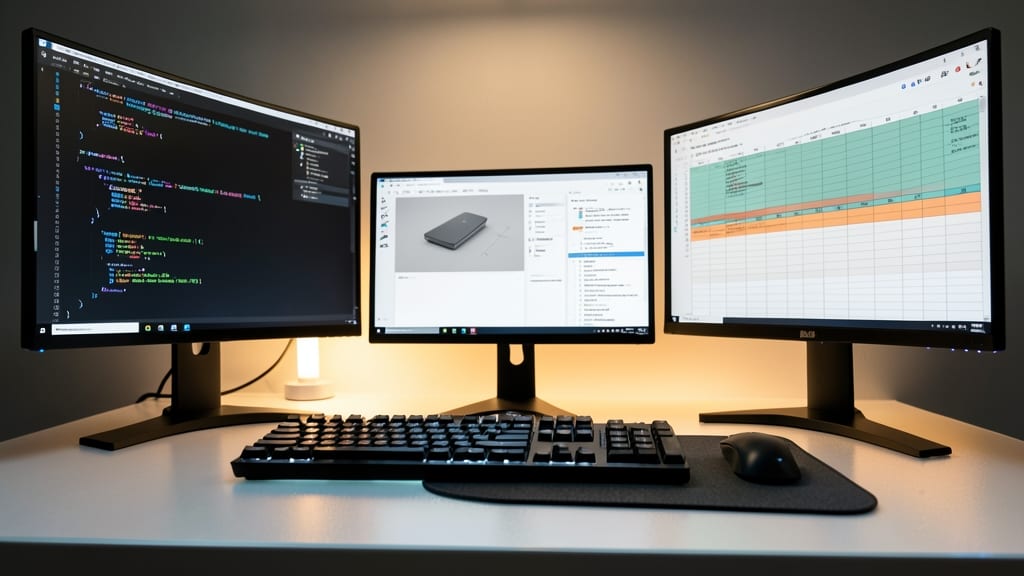
Stuck in a single-monitor productivity rut? Dual displays transform workflows—whether you're coding, designing, or juggling spreadsheets. The key lies in seamless driver configuration, resolution matching, and multi-monitor shortcuts that most users overlook.
On Windows, use NVIDIA Control Panel or Intel Graphics Command Center to enable multi-display mode and set 4K@60Hz on one screen while keeping the other at 1080p@120Hz for gaming or video. Mac users leverage System Preferences > Displays to extend or mirror screens, then drag apps between spaces with Mission Control. Pro tip: Enable "Make windows from primary display appear on secondary" to avoid accidental misplacements.
This setup is a game-changer for developers (IDE on one screen, docs on another) and designers (high-res mockups alongside reference images). With the right config, you’ll spend less time alt-tabbing and more time getting work done. ✨