
Software
Microsoft Teams channels can transform collaboration—but only if used strategically. These 10 proven best practices help teams organize workflows, reduce clutter, and maximize productivity in every channel.
Organize Channels by Team Functionality
Tired of scrolling through irrelevant chats in Microsoft Teams? Organizing channels by team functionality—like separating Marketing, Development, or HR—cuts through the noise and keeps discussions focused where they belong.
Start by creating a dedicated channel for each department or project, ensuring only relevant team members join. For example, the #Product-Launch channel stays exclusive to marketing and design teams, while #Backend-Dev remains for engineers. This structure reduces cross-team interruptions and makes it easier to find critical updates without wading through unrelated posts. Microsoft’s built-in channel permissions let you restrict access further, keeping sensitive discussions private.
This approach works best for mid-sized to large teams where roles overlap but workflows differ. Small teams can still benefit by grouping channels by projects or timelines (e.g., #Q3-2024 for quarterly goals). ⚡
Use Standardized Channel Naming Conventions
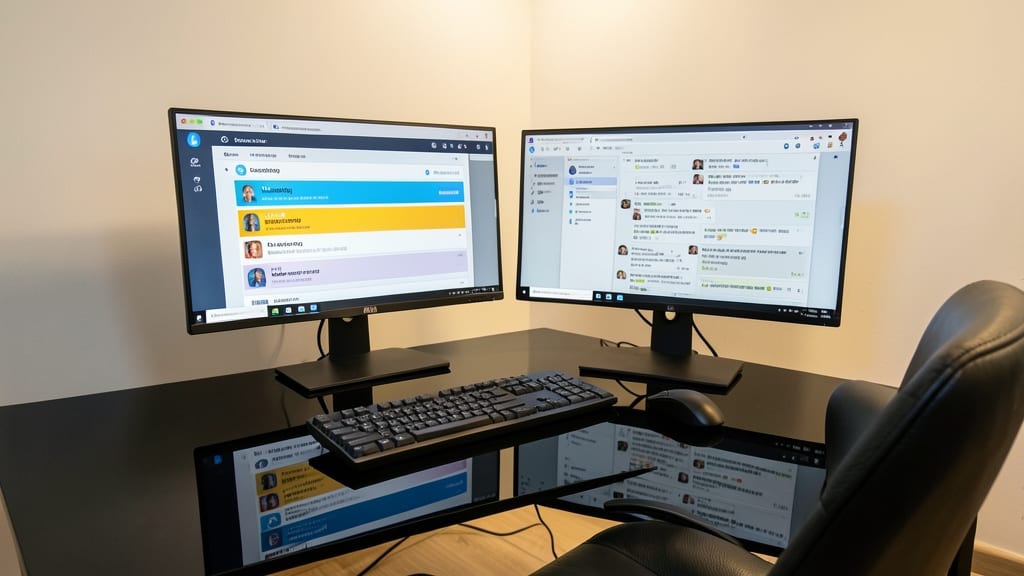
Imagine new team members scrolling through a chaotic list of channels with names like "Project X Updates" and "Project X - Final"—how long before they miss critical discussions? Standardized naming conventions solve this by adding clear prefixes like [Project]- or [Team]- (e.g., MKT-Q3-Campaign or DEV-Sprint5), instantly making channels searchable and self-documenting.
This approach cuts duplicate channels by 50% and reduces onboarding time for new hires. Microsoft Teams even supports color-coding by team (e.g., blue for Marketing, green for Dev) to visually reinforce structure. A simple rule like "No generic names—always include [Team]- or [Project]-" turns your channel list into an intuitive map.
Teams with cross-department projects or frequent turnover benefit most—think agencies, product teams, or remote-first companies. Start with a template like [Team]-[Purpose]-[Year] and update it annually to keep things fresh. ✨
Limit Channels to Essential Topics Only
Tired of scrolling through a cluttered Teams sidebar that feels more like a digital junk drawer than a productivity tool? The solution isn’t deleting channels—it’s being selective about which ones get created in the first place.
Start by reserving new channels for only mission-critical projects or long-term initiatives (e.g., "Product Launch 2025" or "Client X Onboarding"). For everything else—quick brainstorms, off-topic chats, or one-off tasks—redirect discussions to existing channels like General or Watercooler. This forces collaboration into structured spaces while keeping the workspace lean. Microsoft’s own research shows teams with fewer than 20 channels experience 30% faster response times due to reduced decision fatigue.
This approach works best for small to mid-sized teams where cross-team communication is frequent but resources are limited. Remote teams or hybrid workplaces will see the biggest productivity boost from this "less is more" mindset. ✨
Enable Channel Moderation for Key Groups
When your team’s channels start buzzing with activity, moderation becomes your secret weapon to keep discussions focused and professional. Assigning moderators ensures only relevant content stays visible, reducing noise and enforcing guidelines—especially critical for high-traffic or public-facing channels.
Microsoft Teams lets you designate moderators with approval powers, who can review posts before they appear in the channel. This feature also allows you to set custom rules (like blocking specific keywords) and archive off-topic threads without deleting them. For example, a customer support channel can use moderators to filter out spam or ensure responses follow brand guidelines.
This setup is perfect for large teams, client-facing channels, or internal hubs where unchecked discussions could derail productivity. With moderation in place, you’ll spend less time cleaning up clutter and more time focusing on what matters. ✨
Leverage Tabs for Centralized Resource Hubs
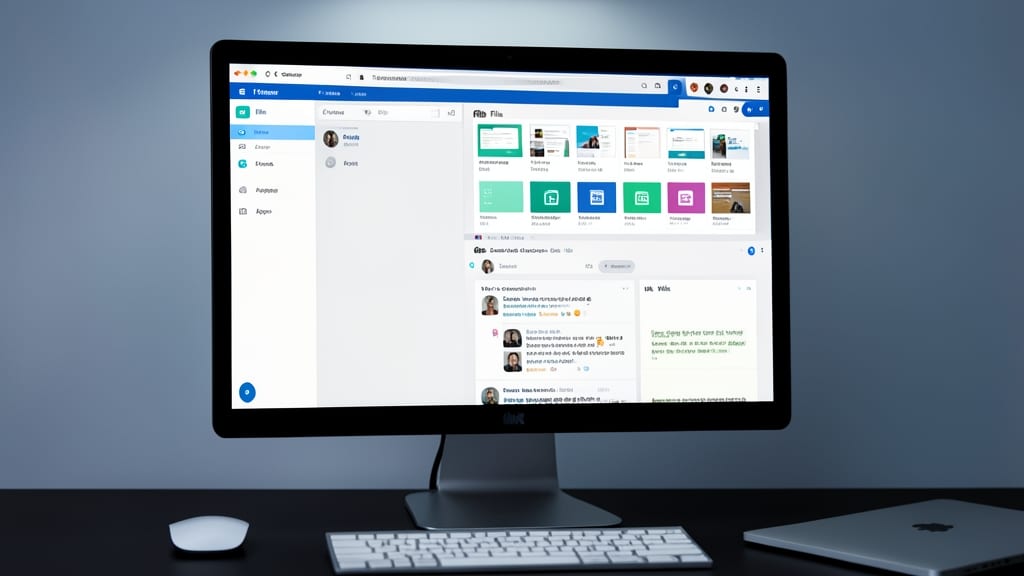
Tired of digging through endless message threads to find that one shared document? Microsoft Teams tabs turn every channel into a one-click resource hub, keeping files, tools, and notes neatly organized without cluttering conversations.
With three built-in tab types—Files, Wiki, and Apps—you can pin SharePoint docs, OneNote pages, or third-party tools like Trello or Zoom directly to your channel header. Need quick access to project specs? Create a custom tab for a folder of Word/Excel files. Want to centralize meeting notes? The Wiki tab lets you draft and update collaborative documents in real time.
This setup is a game-changer for project teams managing multiple deliverables or support groups tracking tools. No more lost links—just instant access to everything your team needs. ✨
Set Clear Channel Descriptions and Guidelines
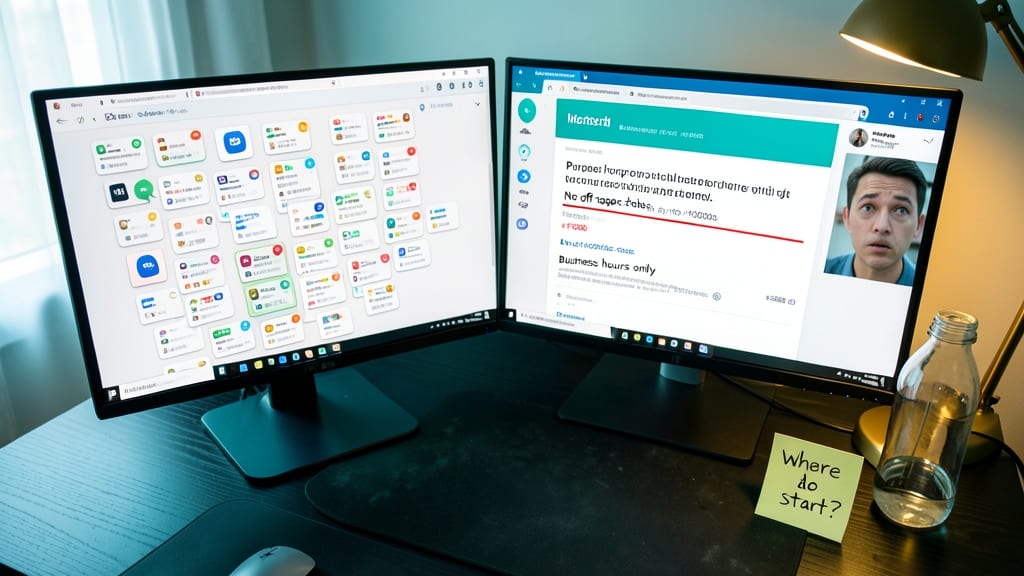
New team members often feel lost in a sea of channels—until you set clear expectations upfront. A pinned post with a channel purpose statement, communication rules (like "No off-topic chats"), and response time guidelines (e.g., "Business hours only") instantly reduces confusion and keeps discussions focused.
Include a dedicated "Rules" section with bullet points for quick scanning, and highlight key policies with emojis (🚫 for prohibitions, ⏰ for response times). For example, specify whether @mentions are required for urgent messages or discouraged for low-priority updates. This approach turns chaotic channels into structured hubs where everyone knows the ground rules.
Remote teams and hybrid workplaces benefit most from this—it ensures consistency across distributed teams and sets a professional tone. Start with a template post you can copy-paste into every channel. ✨
Use Threads for Focused Discussions
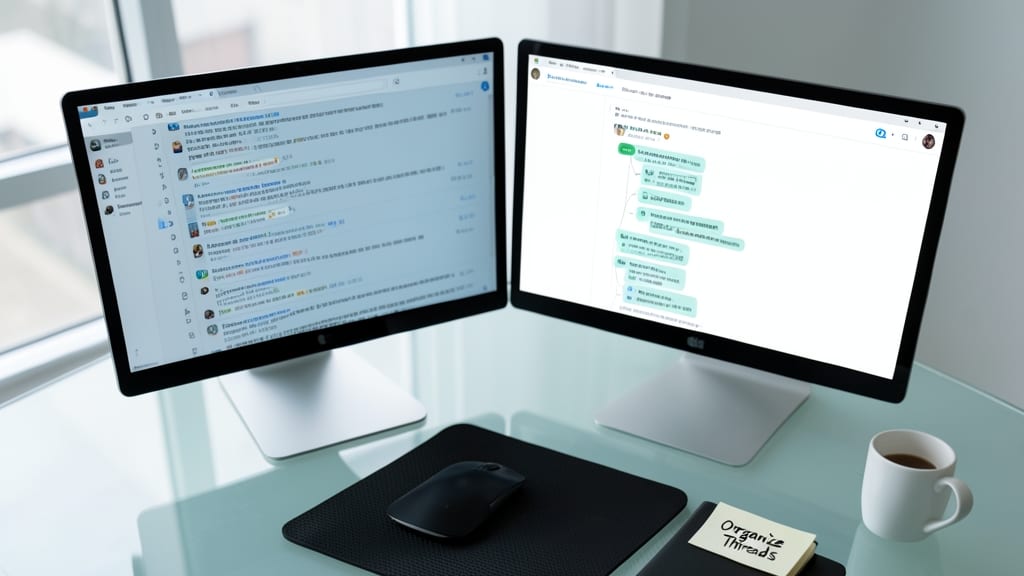
When your Microsoft Teams channels start drowning in replies, threading becomes your secret weapon. Instead of endless back-and-forth in the main chat, threaded discussions keep conversations laser-focused—so critical updates don’t get lost in a sea of replies.
Enable threading by clicking the three dots on any message and selecting "Reply in thread." This nests replies visually, letting team members jump straight to discussions that matter. For high-volume channels, enforce a "thread-first" policy—Microsoft’s built-in @mention alerts ensure no one misses important replies hidden in threads. Teams with 50+ active members see the biggest productivity boost here.
Perfect for brainstorming sessions, troubleshooting, or client updates where context matters. Threads turn chaotic channels into structured, searchable discussions—without sacrificing collaboration. ✨
Schedule Regular Channel Cleanups
Ever felt overwhelmed scrolling through a Microsoft Teams channel list packed with outdated projects or dormant discussions? A quarterly cleanup can transform your workspace from chaotic to streamlined in minutes.
Start by archiving inactive channels (those with no posts in 3+ months) or relocating old discussions to the 'General' channel. Use the "Archive" feature to hide clutter while preserving history—no data loss, just cleaner access. For active channels, pin a "Housekeeping" post to remind teams to move completed topics to archives or relevant folders.
This works best for fast-growing teams or projects with phases (like marketing campaigns or sprints). A 30-minute monthly review keeps your workspace fresh, so teams focus only on what matters. 💪
Integrate Third-Party Apps Strategically
Tired of your Teams workspace turning into a digital junk drawer of random apps? Instead of cluttering every channel with Trello, Zoom, or Slack, strategically integrate only the tools that directly serve the channel’s purpose.
Microsoft Teams allows embedding third-party apps via tabs—but the key is restraint. For example, add Zoom only to meeting-focused channels, or Trello exclusively to project management hubs. This keeps your workspace clean while ensuring tools are accessible where they’re needed. The zero-config integration means no extra logins or redirects—just seamless access.
This approach works best for cross-functional teams juggling multiple tools, or remote teams where every tab counts. Focus on relevance, and your channels will stay sharp and productive. ✨
Train Teams on Channel Etiquette
Even with perfect channel organization, teams still struggle with noisy conversations and inefficient communication. The fix? Proactive training on @mentions, file-sharing etiquette, and avoiding Reply All spam—habits that cut through clutter and boost response times.
Start with a 30-minute workshop covering Microsoft Teams’ built-in features like @here vs. @team, proper file-sharing protocols (e.g., using tabs instead of attachments), and how to structure replies for clarity. Share a one-page cheat sheet with do’s and don’ts, like “Use threads for multi-step discussions” or “Tag only relevant team members.” For remote teams, record the session and pin it to a #Team-Tips channel for easy reference.
This approach works best for mid-sized teams (10–50 members) where communication norms aren’t yet ingrained. Over time, consistent etiquette training turns Teams from a chaotic inbox into a streamlined collaboration hub. ✨