
PowerPoint
Elevate your PowerPoint presentations with these seven professional transition effects that create smooth, engaging slideshows. Mastering these techniques will help you keep your audience’s attention and make complex ideas flow effortlessly.
Fade Slide Transition for Elegant Simplicity
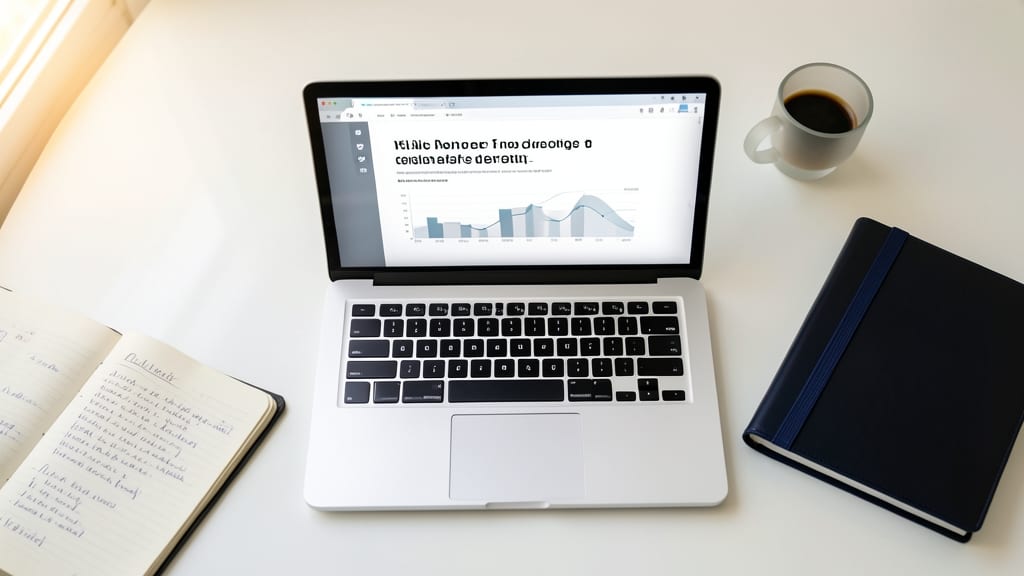
When your presentation needs to feel polished and professional—without stealing focus from your data—Fade Slide Transition is the quiet powerhouse of PowerPoint effects. This subtle yet sophisticated effect dissolves one slide into the next, ensuring your audience stays locked on your message, not the animation.
Available in PowerPoint 2016, 2019, and 365 (including Mac), the Fade transition offers customizable timing (from 0.5 to 5 seconds) and optional sound cues for emphasis. Unlike flashy effects, it works seamlessly with dark or light backgrounds, making it ideal for executive decks, financial reports, or any slide deck where clarity is non-negotiable.
This is the go-to choice for corporate leaders, analysts, and educators who prioritize professionalism over flash. Use it to maintain a sleek, distraction-free flow—perfect for when your content speaks for itself. ✨
Push Slide Transition for Dynamic Movement
Want to turn your presentation into a cinematic journey? The Push Slide Transition is your secret weapon for storytelling—it doesn’t just move slides, it connects them with purpose.
This effect creates a smooth, directional shift (left, right, up, or down) that subtly signals progression, perfect for guiding your audience through a narrative arc. Customize the speed (from 1 to 5 seconds) and direction to match your flow, and pair it with a sound effect (like a subtle "whoosh") for extra polish. Works seamlessly in PowerPoint 2016, 2019, and 365, with no compatibility headaches.
Ideal for creative pitches, TED-style talks, or educational content, this transition keeps your audience engaged without overwhelming them. ⚡
Zoom Slide Transition for High-Impact Reveals
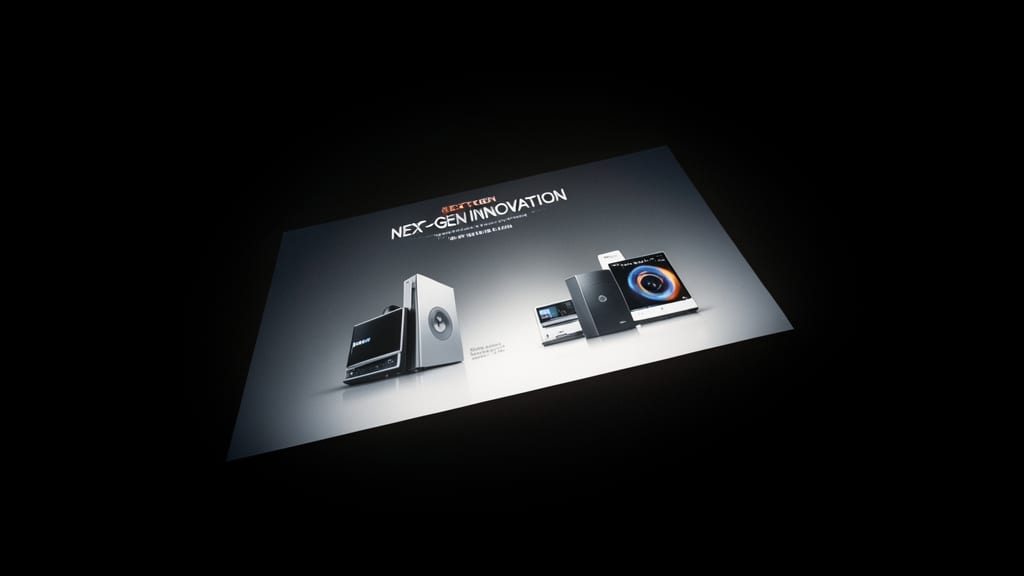
Need to make your big announcement feel like a blockbuster moment? The Zoom Slide Transition transforms ordinary slides into high-stakes reveals by zooming in from a black void—perfect for product launches, keynotes, or investor pitches.
This effect works by scaling your slide up from a dark background, creating a cinematic "unveiling" that commands attention. You can adjust the zoom speed (slow for drama, fast for urgency) and pair it with sound effects (like a subtle "whoosh" or applause) for maximum impact. In PowerPoint 2016+, it’s built into the "Zoom" preset under the Transitions tab, requiring zero plugins—just select and customize.
Ideal for speakers who want to build anticipation before critical slides, this transition works best when used sparingly—save it for your top 3-5 slides to avoid overshadowing your content. 🌟
Morph Slide Transition for Seamless Data Flow
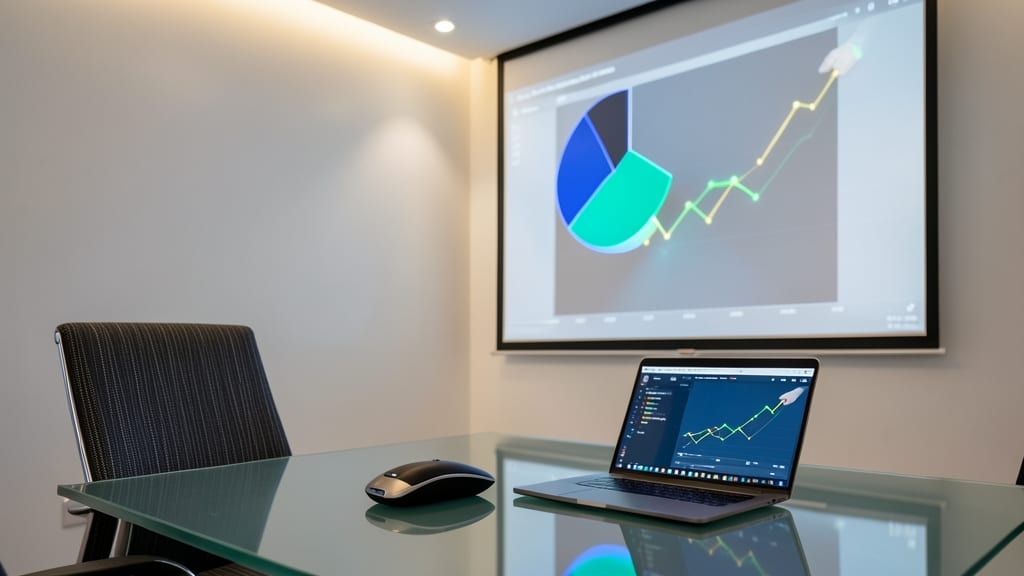
When your audience needs to track evolving data—like shifting sales metrics or real-time analytics—Morph transitions transform static slides into dynamic storytelling tools. Unlike abrupt cuts or directional effects, Morph animates element-by-element changes (e.g., a pie chart morphing into a line graph) while preserving layout and context.
Available in PowerPoint 2016 and later, this effect works best with identical slide layouts and minimal text changes. Adjust the transition speed (0.5s–3s) to match your pacing, and use the “Morph” preview to test how objects transform. For technical presentations, pair it with data-driven animations to highlight trends without overwhelming viewers.
Data analysts, engineers, and educators will love Morph for its precision—ideal when explaining iterative processes or comparing datasets side-by-side. Just avoid overusing it with complex visuals to keep the focus on insights, not flash. ✨
Wipe Slide Transition for Creative Storytelling
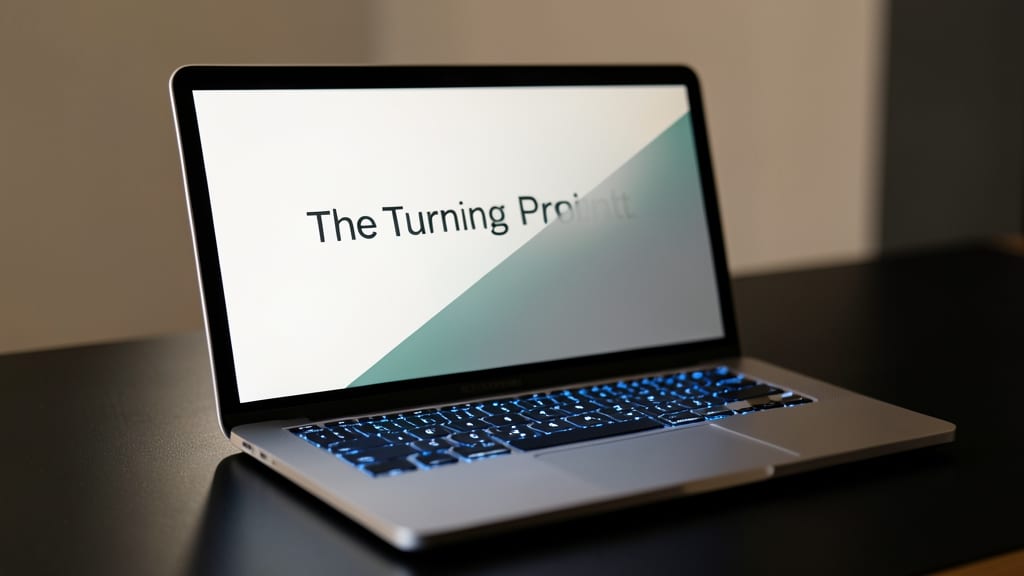
Looking to turn your presentation into a gripping narrative? The wipe slide transition is your secret weapon for educational and storytelling slideshows. Unlike abrupt cuts or flashy zooms, wipes use sweeping motions (vertical, horizontal, or diagonal) to guide your audience through ideas with intentional pacing.
PowerPoint offers five wipe variations: straight, diagonal, vertical, horizontal, and even custom paths. You can adjust the transition speed and add subtle sound effects (like a soft whoosh) to enhance immersion. For educators, this effect works beautifully when transitioning between historical timelines, literary scenes, or step-by-step processes—keeping learners engaged without overwhelming them.
Perfect for teachers, trainers, and content creators who want to balance creativity with clarity. Just avoid overusing it—save wipes for moments where you want to emphasize a deliberate shift in your story. ✨
Fade Through Black for Dramatic Pacing
Need to make your pitch deck or awards ceremony slides feel more intense? The Fade Through Black transition is your secret weapon. Unlike subtle fades, this abrupt shift to black—then back to your next slide—creates a deliberate pause that signals importance, perfect for high-stakes moments.
To set it up, go to Transitions > Fade Through Black in PowerPoint, then tweak the duration (try 1.5–2 seconds) and add a sound effect like "Chimes" for extra impact. Works flawlessly in PowerPoint 2016, 2019, and 365—just avoid overusing it, or it’ll lose its dramatic edge.
Ideal for venture capital pitches, product launches, or award speeches, this transition keeps your audience leaning in. Use it sparingly to mark pivotal slides—like your call to action or big reveal. ✨
3D Rotate Transition for Interactive Engagement
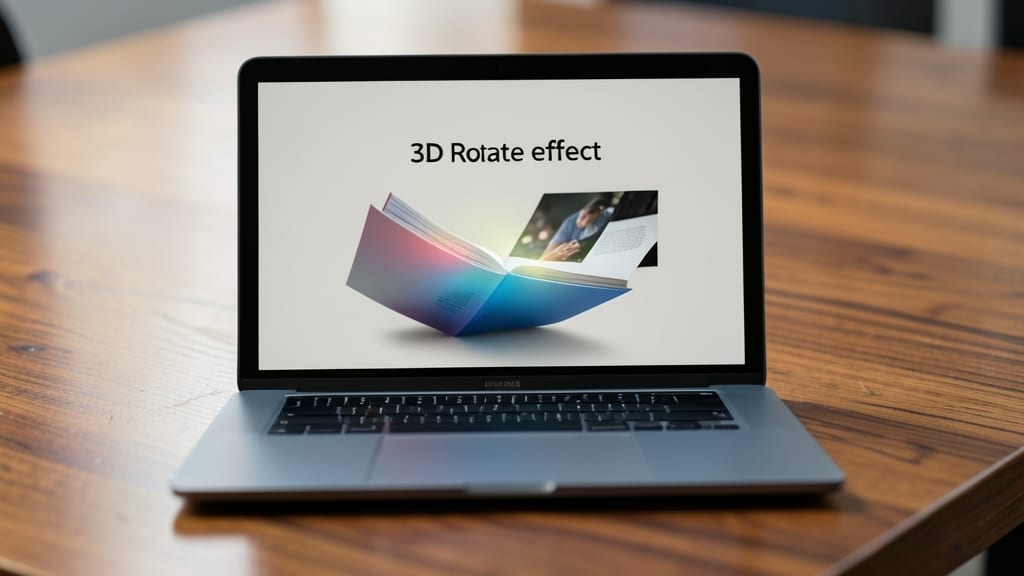
Turn your presentation into an interactive experience with the 3D Rotate Transition, designed to mimic flipping through a physical book. This effect isn’t just visually striking—it creates a tactile connection with your audience, perfect for workshops or training sessions where engagement is key.
You can customize the rotation axis (horizontal, vertical, or custom), adjust speed for a smoother or more dramatic effect, and even add a subtle bounce for extra flair. Works seamlessly in PowerPoint 2016 and later, including Mac versions, and pairs well with 3D models or layered slides to enhance the interactive feel.
Trainers, educators, and facilitators will love this transition for its ability to break up monotony and keep participants actively involved. Try pairing it with a sound effect (like a page turn) for an even more immersive experience. ✨