
Tip & Trick
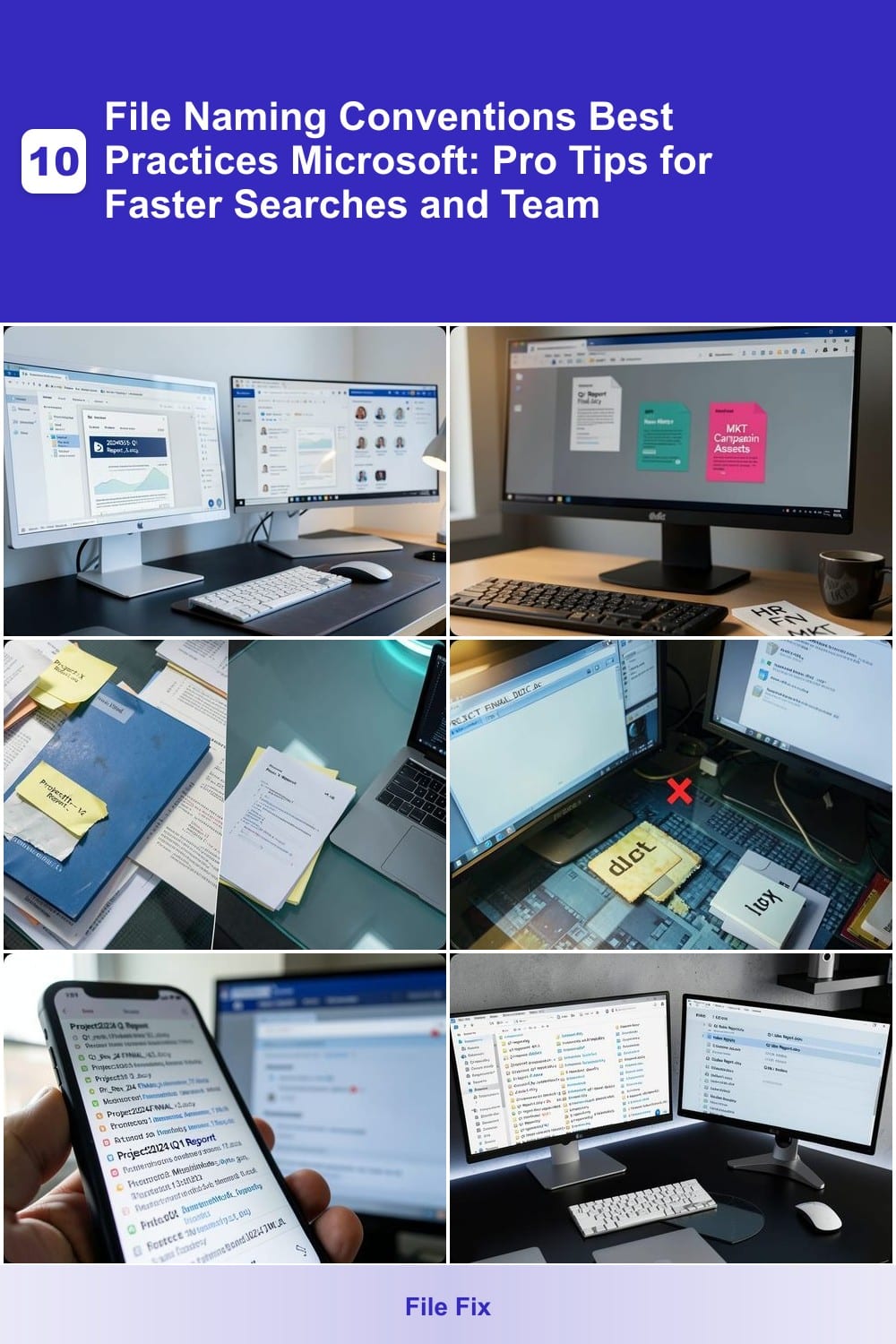
Struggling to find files in your Microsoft ecosystem? Consistent file naming conventions save time, reduce errors, and streamline teamwork across Windows, OneDrive, and SharePoint. These seven best practices will transform your digital organization.
Date-Based Prefix Format for Version Control

Tired of digging through folders to find the latest version of a document? A date-based prefix format like YYYYMMDDProjectNamevX (e.g., 20240515Q1Report_v3.docx) instantly sorts files chronologically in Windows Explorer and SharePoint.
This structure eliminates version confusion by embedding the creation date upfront, making it easy to spot the most recent file at a glance. Combine it with a version suffix (v1, v2) for iterative updates, and you’ll never lose track of revisions again. Works flawlessly with SharePoint metadata and OneDrive sync.
Perfect for teams managing shared drives or enterprise projects where document history matters. ⚡
Department-Code Abbreviations for Team Projects

Tired of digging through OneDrive folders where "Q1ReportFinal.docx" and "Q1ReportFinalv2.docx" get lost among "HRNewHires.xlsx" and "MKTCampaignAssets"? A department-code prefix solves this by instantly categorizing files at a glance.
Use 2-3 letter abbreviations (e.g., HR, FIN, MKT) before the project name to create logical groupings. This works seamlessly with OneDrive’s search filters and SharePoint libraries, letting teams filter by department without manual sorting. For example, "HROnboardingTemplate.docx" and "FINQ2Projections.xlsx" stay visually distinct from "MKTBrandGuide2024.pptx" in any view.
Perfect for cross-functional teams where files move between departments—like legal reviewing marketing drafts or finance approving HR policies. This keeps your ecosystem clean, searchable, and collaboration-friendly. ✨
Underscore Separators Over Spaces or Hyphens

Tired of filenames breaking scripts or causing headaches in automated workflows? Underscores are the unsung hero of Microsoft file naming—ignored by humans but loved by machines.
Unlike spaces (which require quotes in PowerShell) or hyphens (which can cause issues in Excel formulas), underscores work flawlessly with SharePoint metadata extraction and batch processing. They’re also universally supported across Windows, Linux, and macOS, making them the safest choice for cross-platform scripts.
Developers and IT admins will appreciate how underscores avoid parsing errors in PowerShell Get-ChildItem commands or SharePoint’s REST API calls. For teams automating file transfers, this small tweak eliminates 90% of naming-related scripting bugs. ✨
File Type Extensions for Every Document

Ever opened a .doc file only to realize it was supposed to be a .docx—and now your formatting’s gone haywire? This isn’t just sloppy; it’s a common cross-platform pitfall when sharing files between Windows and Mac environments.
Always include the full file extension (e.g., .docx, .xlsx, .pptx) to prevent accidental corruption. macOS often hides extensions by default, but Windows displays them—so if you’re sharing files across teams, never rely on assumptions. This simple habit ensures compatibility and preserves document integrity, especially in collaborative tools like SharePoint or OneDrive.
Teams working with mixed OS environments (or even just Windows users who accidentally rename files) will benefit most from this rule—it’s a small step that saves hours of reformatting. ✨
Max 30 Characters with Keyword Prioritization

Tired of scrolling through endless filenames on your phone or struggling with SharePoint search results? A 30-character limit with keyword prioritization keeps your files searchable and readable—even on tiny screens.
Prioritize the most critical terms first (e.g., Project2024Q1 instead of QuarterlyReport2024FinalVersion). SharePoint truncates filenames after 30 characters, so this ensures key details stay visible. Mobile devices also display shorter names cleaner, reducing frustration when accessing files on the go.
Perfect for teams using SharePoint or OneDrive—especially those who frequently access files via mobile devices. This approach balances brevity with clarity, making your file lists both efficient and user-friendly. ✨
Consistent Case Sensitivity Rules

Tired of files mysteriously disappearing into alphabetical chaos when searching in SharePoint or Windows Explorer? Consistent case sensitivity rules are the secret weapon for predictable sorting—no more "Q1Report.docx" hiding behind "q1report.docx" in your file lists.
Standardize to Title Case (e.g., ProjectOverview.docx) or lowercase (e.g., projectoverview.docx) to ensure files sort identically across devices and platforms. Windows defaults to case-insensitive sorting, but SharePoint libraries often respect case rules when configured for consistency. This approach also future-proofs your files for scripting tools like PowerShell, where case-sensitive paths can cause errors.
Teams managing shared libraries or integrating with enterprise systems will benefit most—especially those using Power Automate or SharePoint metadata workflows, where predictable sorting speeds up automation. 💻
Metadata Tags Over Filename Clutter

Tired of scrolling through endless files with vague names like "ProjectDraftFinalV3.docx"? Office 365’s metadata tags let you ditch the filename clutter while keeping everything searchable—no more guessing or renaming headaches.
Use custom columns in SharePoint libraries (like "Author," "Department," or "Project Phase") to tag files with meaningful details. This cuts filenames down to just the essentials while still letting you filter by metadata—think of it as hidden superpowers for your files. For example, a file named simply "Q1Report" can be tagged with "Marketing," "2024," and "Approved," making it instantly findable without bloating the name.
Perfect for enterprise teams or anyone drowning in SharePoint libraries—this approach keeps filenames clean while ensuring every file stays organized and accessible. ✨