
Tip & Trick
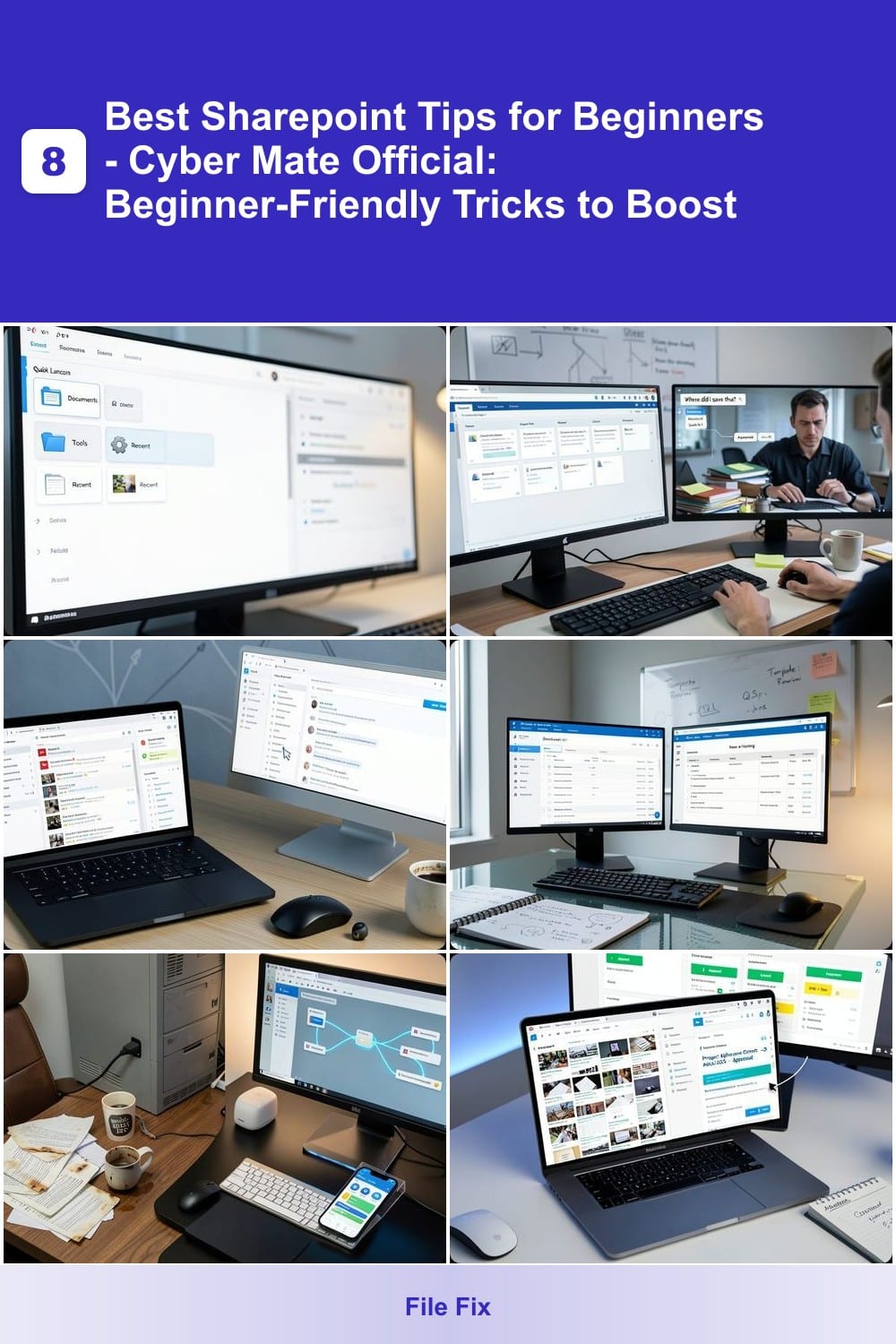
Struggling to master SharePoint’s powerful features as a beginner? These eight essential tips will transform how you organize, collaborate, and automate tasks—without overwhelming technical jargon. Perfect for new users looking to boost productivity immediately.
Master SharePoint navigation with Quick Launch
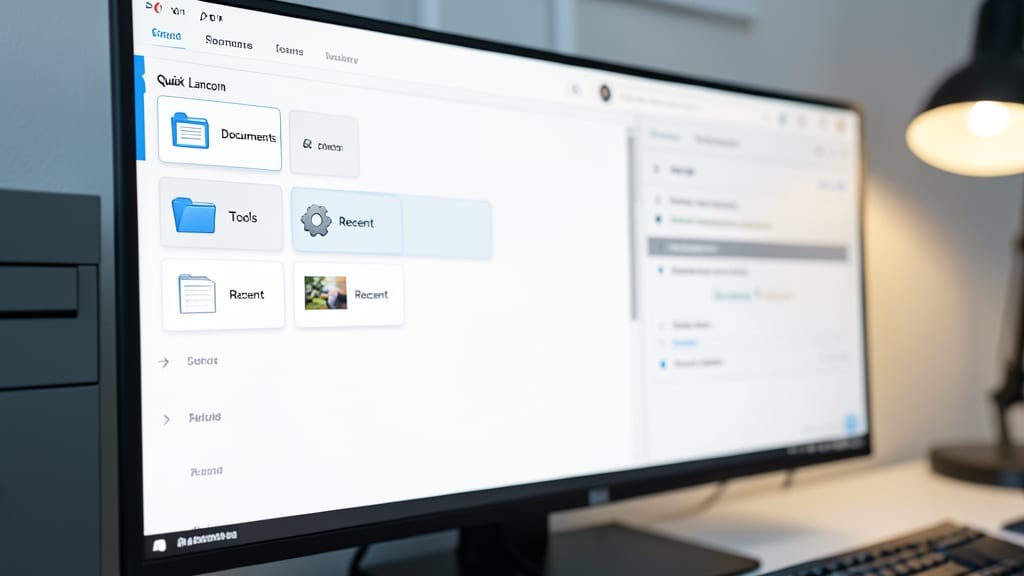
Tired of wasting time digging through SharePoint’s nested menus every time you need a document or tool? The Quick Launch bar is your secret weapon—transforming chaotic navigation into one-click access.
Located on the left side of every SharePoint site, this customizable panel lets you pin frequently used sites, libraries, and apps (like OneDrive or Teams) for instant access. You can even rearrange items by dragging and dropping, or use the search box to jump directly to specific content. With just a few clicks, you’ll eliminate the frustration of repetitive clicks and menu diving, saving 10+ minutes daily.
This tip is perfect for new SharePoint users or anyone juggling multiple sites—whether you’re a project manager, team lead, or individual contributor. ⚡
Use document libraries for smart file organization

Tired of digging through endless folders to find that one document? SharePoint’s document libraries replace traditional folders with a metadata-powered system that lets you tag, filter, and search files in seconds—no more "Where did I save that?" panic.
Create custom columns like Project Name, Owner, or Status to categorize files intelligently. Use content types to enforce consistency (e.g., "Contract" or "Report" templates) and enable versioning to track changes automatically. The built-in search even understands natural language queries like "Show me all approved marketing proposals from Q3."
This is a game-changer for project managers, HR teams, or anyone juggling shared files. Say goodbye to version control chaos and hello to effortless organization. ✨
Leverage SharePoint alerts for real-time updates
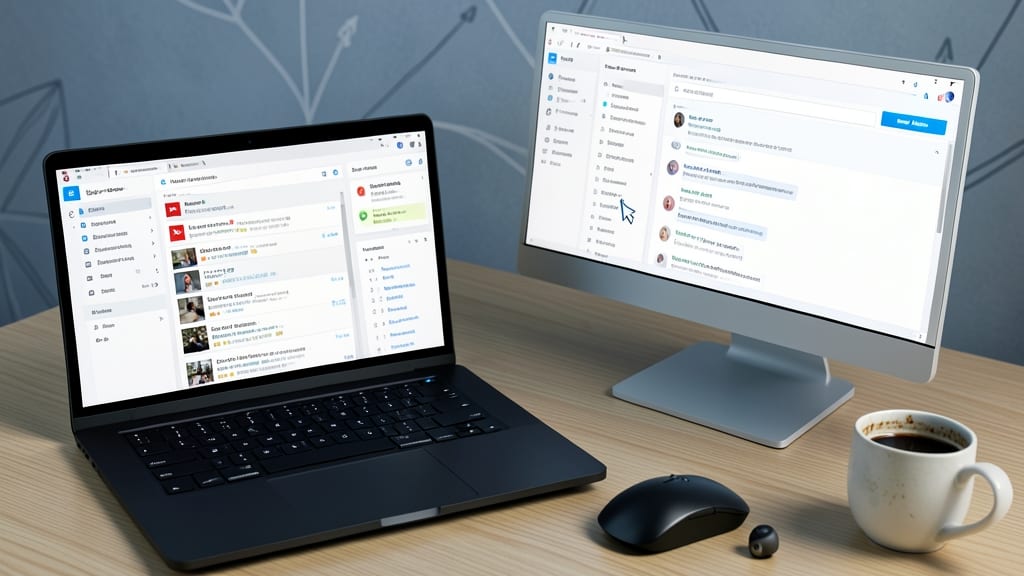
Tired of missing critical updates buried in SharePoint notifications? Email alerts turn passive checks into proactive updates—delivered straight to your inbox when documents change, tasks are assigned, or deadlines approach.
Set up alerts in seconds by navigating to a library, list, or calendar, then selecting "Alert Me" from the gear icon. Choose frequency (immediate, daily, or weekly) and delivery method (email or SMS). For remote teams, this ensures no one slips through the cracks—whether it’s a revised contract or an overdue approval request. The best part? Zero manual refreshing required.
This tip is a game-changer for project managers, freelancers, or anyone juggling multiple SharePoint sites. Never let a critical update slip past you again! ✨
Create and reuse SharePoint templates
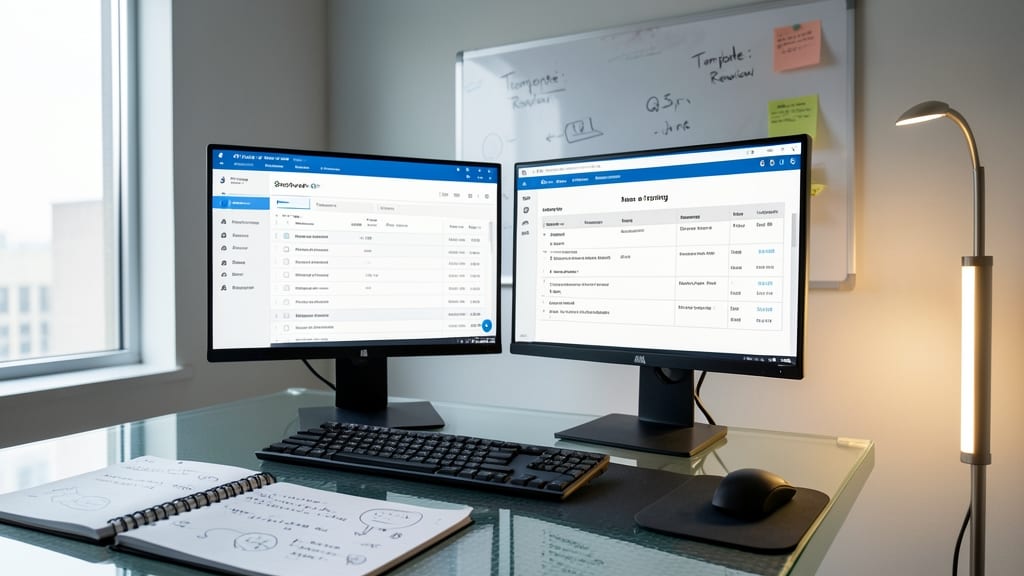
Tired of recreating the same project sites or meeting agendas from scratch every time? SharePoint’s template feature lets you design once and reuse endlessly—saving hours across teams. Whether it’s a standard report layout or a recurring event planning structure, templates enforce consistency while cutting setup time by 50%.
Start by creating a site template or list template in SharePoint’s design interface. Save it with a clear name (e.g., “Marketing Campaign Tracker”) and assign permissions to control who can edit or duplicate it. For example, a project management template with pre-built task lists and calendars ensures every team starts on the same page—no more reinventing the wheel. 💡
This is a game-changer for project managers, HR teams, or event planners who juggle repetitive workflows. With templates, you’ll spend less time configuring and more time executing—while keeping everything standardized. ✨
Automate workflows with power automate integration

Tired of manually chasing down approvals or copying files between systems? Power Automate bridges the gap between SharePoint and hundreds of other apps—no coding required. With pre-built connectors and a drag-and-drop interface, you can automate everything from sending Slack notifications when a document is uploaded to routing approvals directly from a SharePoint list.
The best part? Zero-config integrations with tools like Outlook, Teams, and even Excel. For example, set up a flow that auto-saves email attachments to a SharePoint library or triggers a Planner task when a new item is added to your list—all in under 10 minutes. Microsoft’s free Power Automate Desktop version even lets you automate repetitive desktop tasks tied to SharePoint files.
This is your secret weapon for admins, project managers, or solo users drowning in repetitive tasks. Whether you’re approving expenses or syncing data between apps, automation handles the heavy lifting so you focus on what matters. ✨
Optimize search with keywords and synonyms
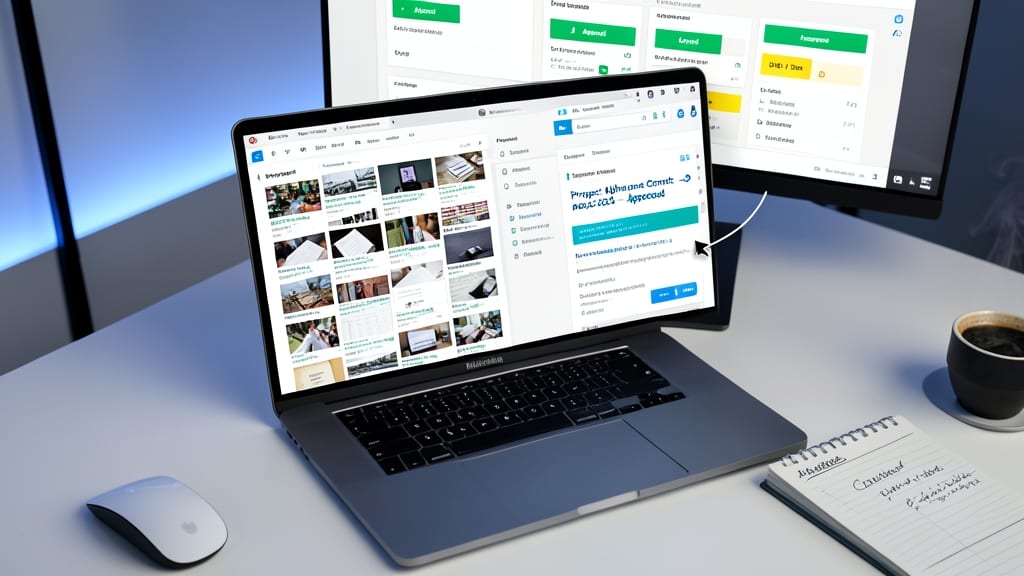
Frustrated by SharePoint searches that return irrelevant files? Adding keywords and synonyms to your documents trains the search engine to prioritize what you need—no more digging through 500 results for that one contract.
Start by editing document properties to add searchable metadata (like project names, client codes, or status tags). For example, tagging a "Q3 Sales Report" with keywords like "financials," "Q3," "2024," and synonyms like "third-quarter revenue" ensures it surfaces when someone searches for any of those terms. SharePoint’s managed metadata feature even lets teams standardize terms across documents, reducing confusion.
This tip is a game-changer for legal teams, project managers, or marketing groups juggling high-volume content. Spend 10 minutes upfront to label files properly, and you’ll save hours weekly hunting for documents. ✨
Collaborate efficiently with SharePoint groups
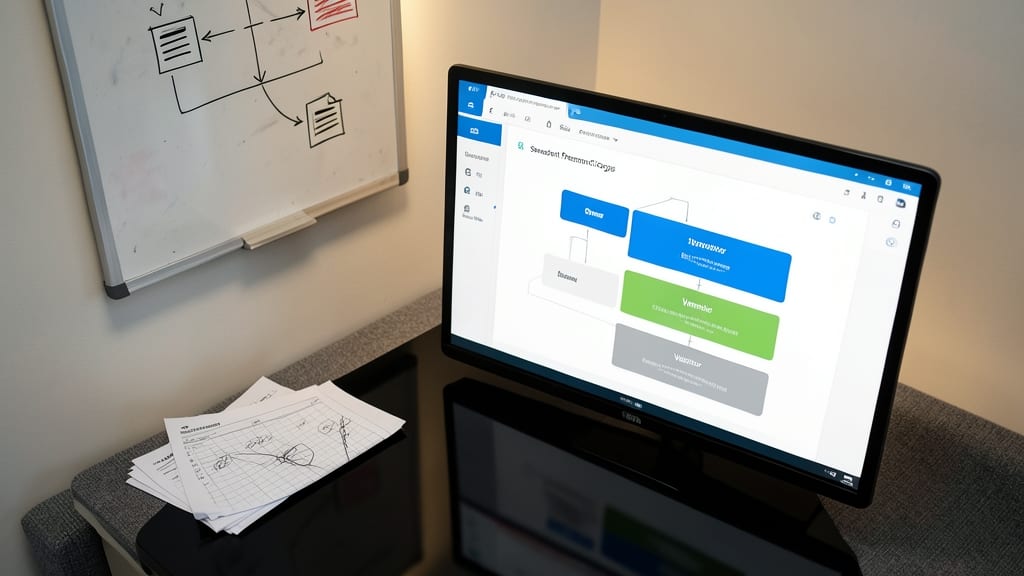
Managing access to sensitive project files shouldn’t require spreadsheets or endless permission edits—SharePoint Groups streamline this with role-based security at the group level, not the individual. Instead of manually adjusting permissions for every team member, assign roles like Owner, Member, or Visitor to entire groups, ensuring only the right people see what they need.
Create groups for specific projects (e.g., "Marketing Launch Team" or "HR Onboarding") and assign permissions once. Need to restrict access to a confidential folder? Simply remove the group instead of revoking permissions for 10 users. This saves hours on admin work and reduces human error—critical for managers juggling multiple projects with tight deadlines.
Perfect for project managers, team leads, or IT admins who need to balance security with collaboration. Say goodbye to permission headaches and hello to effortless access control. ✨
Sync SharePoint files to OneDrive for offline access

Tired of waiting for VPNs or offline access to stall your workflow? Syncing SharePoint libraries to OneDrive lets you edit files seamlessly—whether you're on a train, in a meeting, or working from a café with spotty Wi-Fi.
With just a few clicks, you can sync entire libraries to your device, enabling offline editing of documents, spreadsheets, or presentations. Changes auto-sync when you reconnect, eliminating manual uploads. The process supports large files (up to 10GB) and integrates with Microsoft Office apps for real-time collaboration.
This trick is a game-changer for field workers, sales teams, or remote employees who need instant access without VPN headaches. No more waiting—just work. ✨